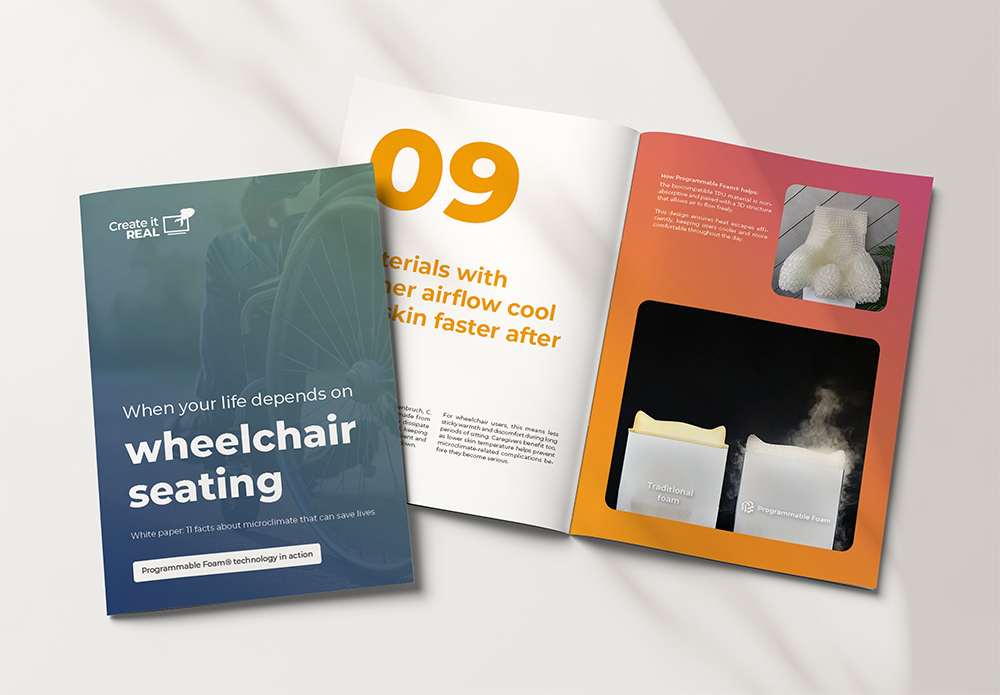
Prepare your device with REALvision Embrace
Enriching 3D models is straightforward with software tailored specifically to your device technology. The intuitive user interface removes unnecessary complexity, allowing you to prepare files with confidence.
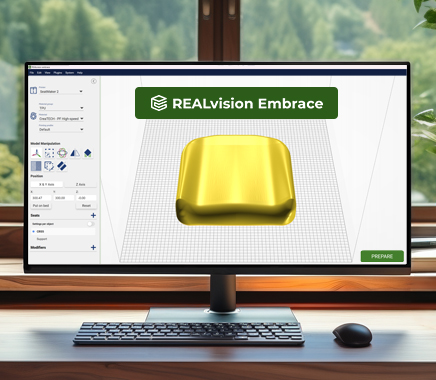
Basic features and capabilities of REALvision Embrace
As part of the Embrace solution product suite, REALvision Embrace software is for device print preparation. Whether you import a CAD model scanned from a physical mold or start with a predefined standard shape, the software preserves the geometry. In REALvision Embrace, you prepare the device for print and control virtually every detail. The following sections highlight the main features of the software, helping you explore its full capability and potential.
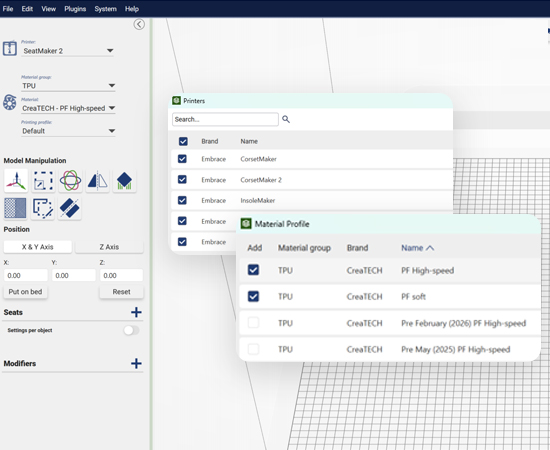
Profiles ensure predictable results
The Embrace solution includes everything you need to produce 3D-printed devices. In REALvision Embrace, you get:
- Printer profiles.
- Material profiles.
If the material properties change when we test the batch, you get an updated material profile. This ensures that you can always expect the same output.
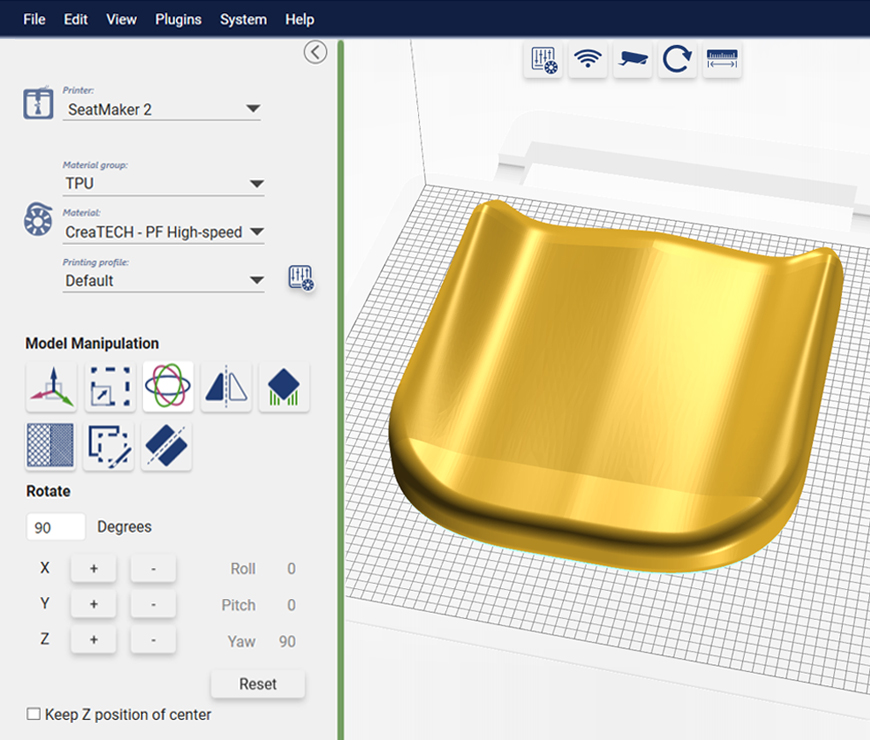
User interface
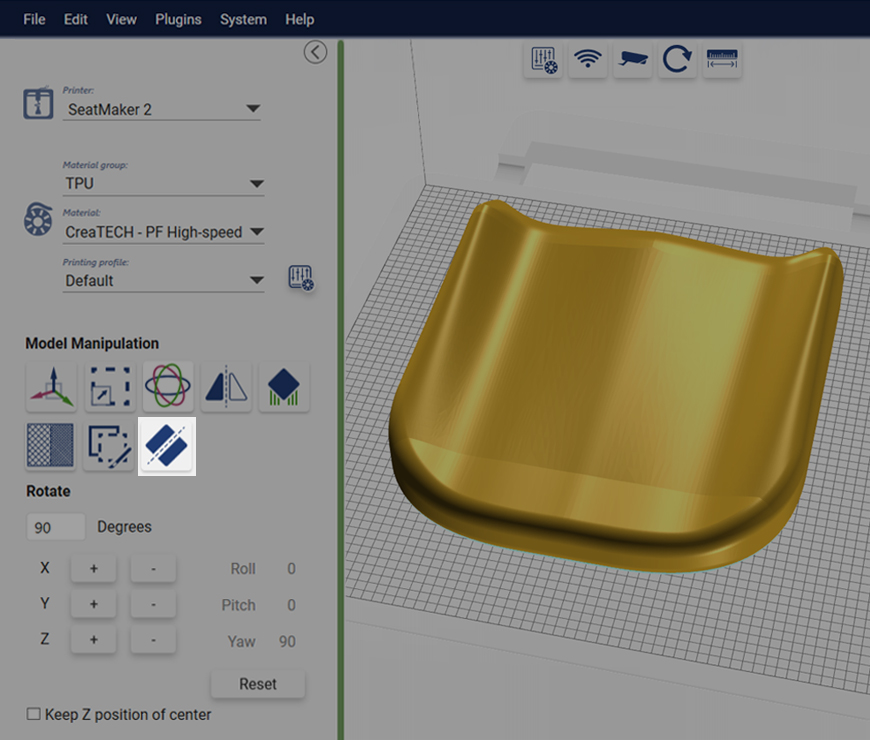
Tested, certified, and patented technology
REALvision Embrace is the only way to access core technology. It is much more than just 3D-printing. Take a look at the technology to see how they act as a complete umbrella covering testing, certifications, and patents.

Very simple workflow
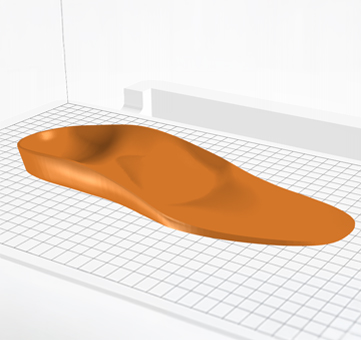
- Drag and drop your stl files into the window.
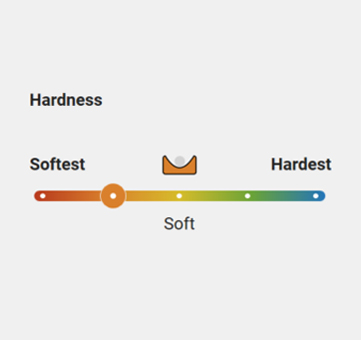
- Choose the desired hardness for your part or modifier.
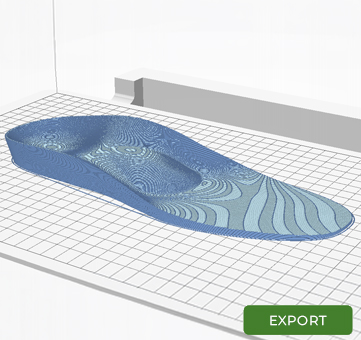
- Click prepare. Inspect the result, and export the G-code.
Change the settings with modifiers
It is actually pretty simple. When you load your model, you set one basic hardness or stiffness for the entire model. You then use modifiers to adjust specific areas.
Modifiers allow you to apply different settings in target zones, giving you full control over hardness versus softness or rigidity versus flexibility. The software provides several modifier types to give you total freedom when preparing your model for print:
- Paint on modifiers with a brush.
- Predefined geometric shapes.
- Imported geometric shapes.
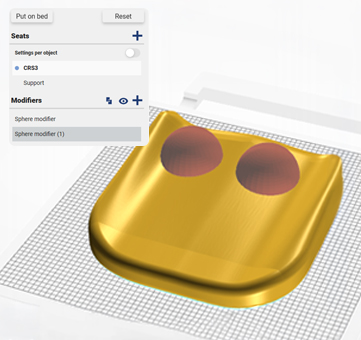
- Apply different hardness in the overlap region.
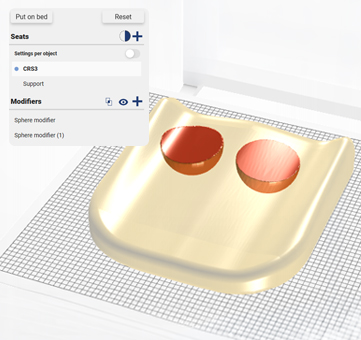
- Overlap inspection mode.
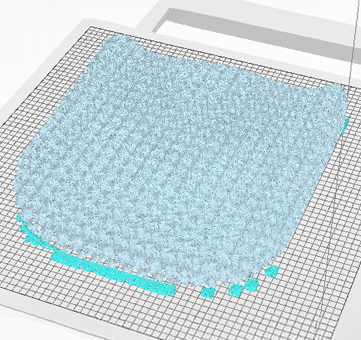
- The object shape is not changed, only the hardness.
Features in REALvision Embrace
Get a deeper understanding of what you can do in the software. Below are the standard features of REALvision Embrace. In the bundle section, you will find the device-specific features.
We offer three different bundles:
Workspace tools and workflow flexibility
Preparing 3D models for production should feel natural, straightforward, and supportive of how you actually work. Whether you are juggling several client orders at once, double-checking critical dimensions, or splitting complex models for better print results, having the right tools right at your fingertips makes all the difference.
REALvision Embrace gives you a flexible workspace that adapts to your daily routine, reduces repetitive clicks, and keeps your focus on delivering great products. You get a smoother prep process, less back-and-forth between menus, and full confidence in every sliced file.
Hardness and stiffness slider
Integrated measurement tool
Intelligent print job splitter
Multiple workspace instances
Flexible preset editing
Right-click menus
Printer management
Workspace camera tool
Production management, planning, and queueing
Managing an efficient setup requires clear operational visibility and absolute predictability. Unplanned downtime, inaccurate production timelines, and unverified material costs directly harm your bottom line. By streamlining how you queue, monitor, and estimate print jobs, you turn 3D printers into a reliable manufacturing fleet. You gain full control over your schedule, maximize machine uptime around the clock, and optimize administration.
Slicing job report
Local WiFi printer monitoring
Precise time estimations
Detailed pre-print weight breakdown
Print quality and output optimization
Achieving consistent, high-quality printed devices requires control over internal geometry, surface finish, and thermal behavior. Minor temperature fluctuations or poor support structures can lead to surface defects, weak components, or failed jobs. By optimizing material deposition, cooling, and structural offsets, you gain higher surface accuracy, isotropic strength, and full visual verification before printing. In short, you optimize the quality of manufactured devices.
Strength with infill
Intelligent layer cooling and repositioning
Concealed zippers
Paint on support adjustments
Interactive 3D view
Global system tools and dedicated support
Maintaining a secure, up-to-date, accessible, and well-supported software environment is essential for smooth day-to-day operations. Outdated system firmware, language barriers, or unresolved technical questions can slow workflows, cause operational errors, and interrupt production runs.
One-click firmware updates
Multilingual interface support
Dedicated customer success assistance
Hardness and stiffness slider
Multiple workspace instances
Flexible preset editing
Load more
Right-click menus
Integrated measurement tool
Printer management
Intelligent print job splitter
Workspace camera tool
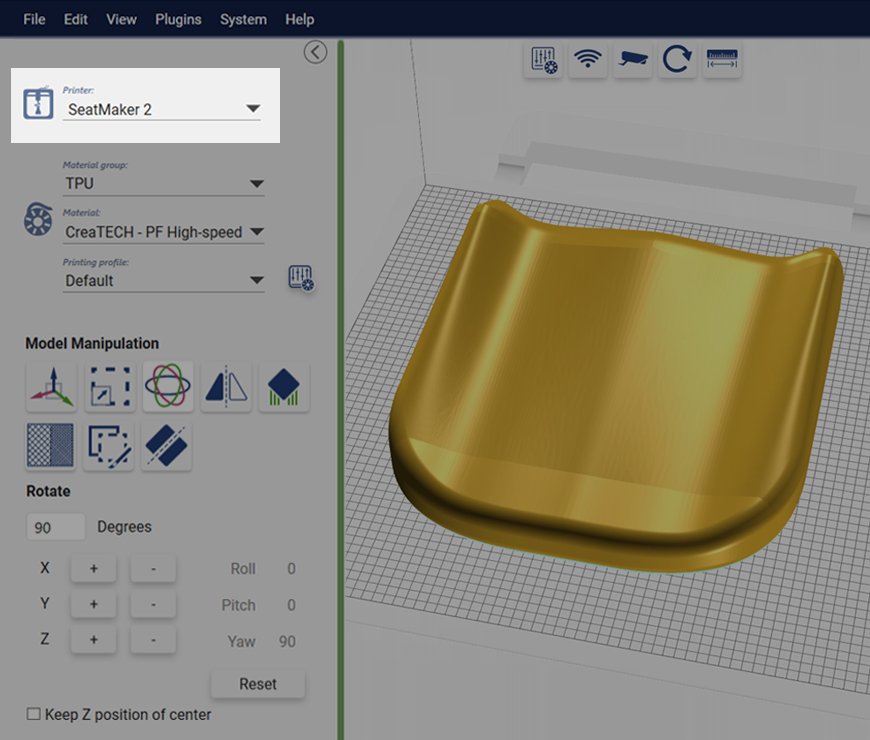
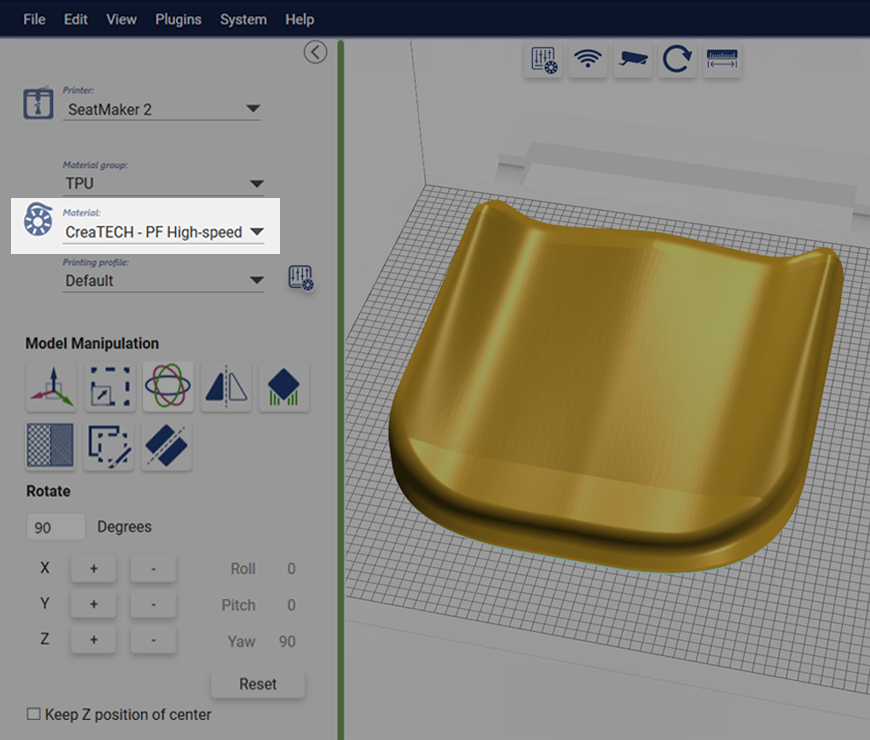
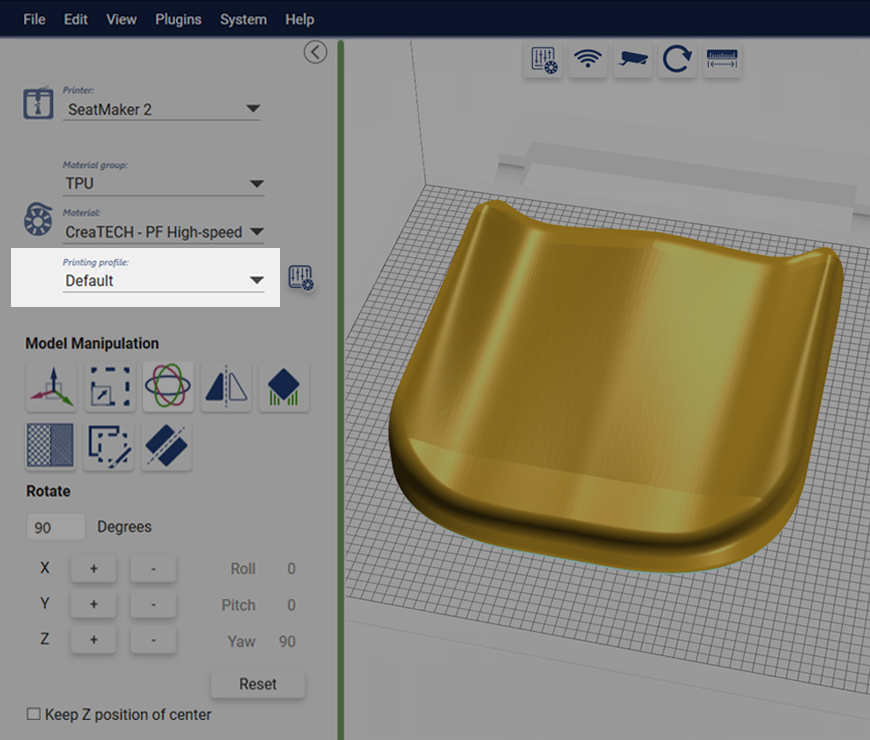
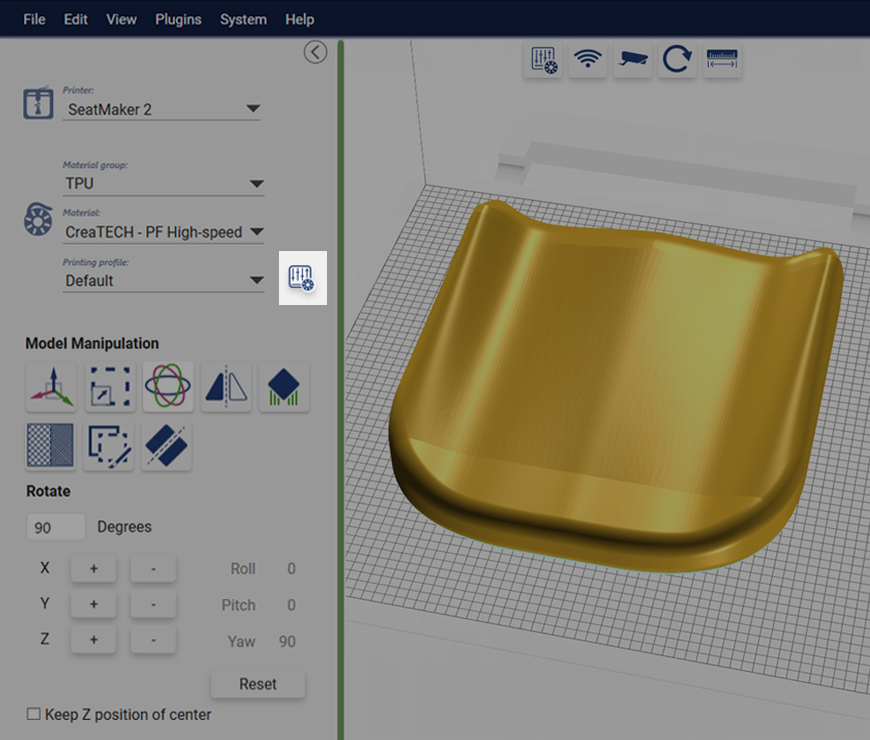
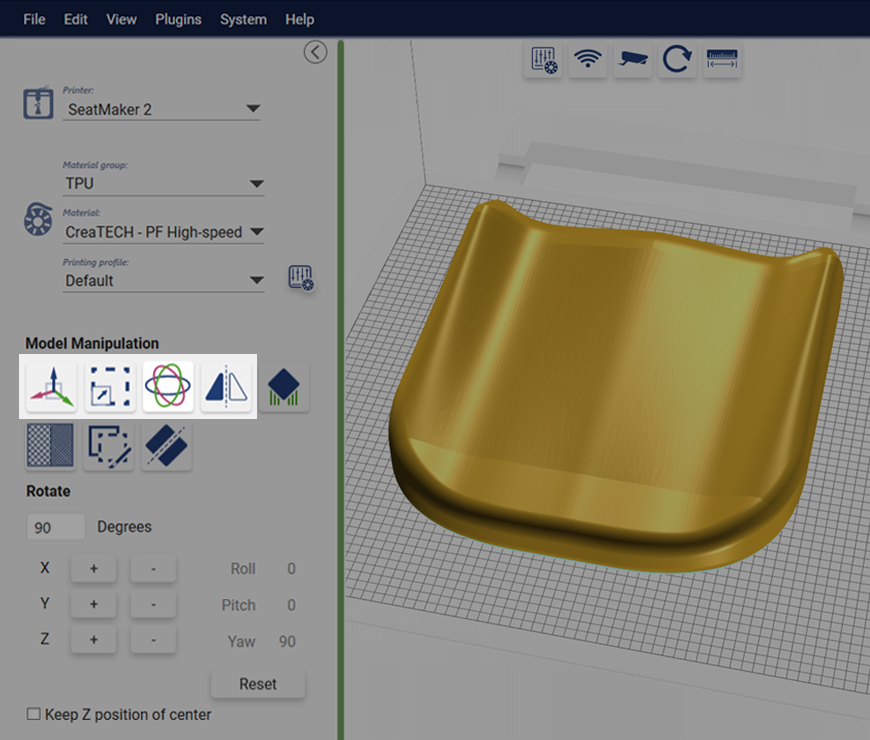
User interface
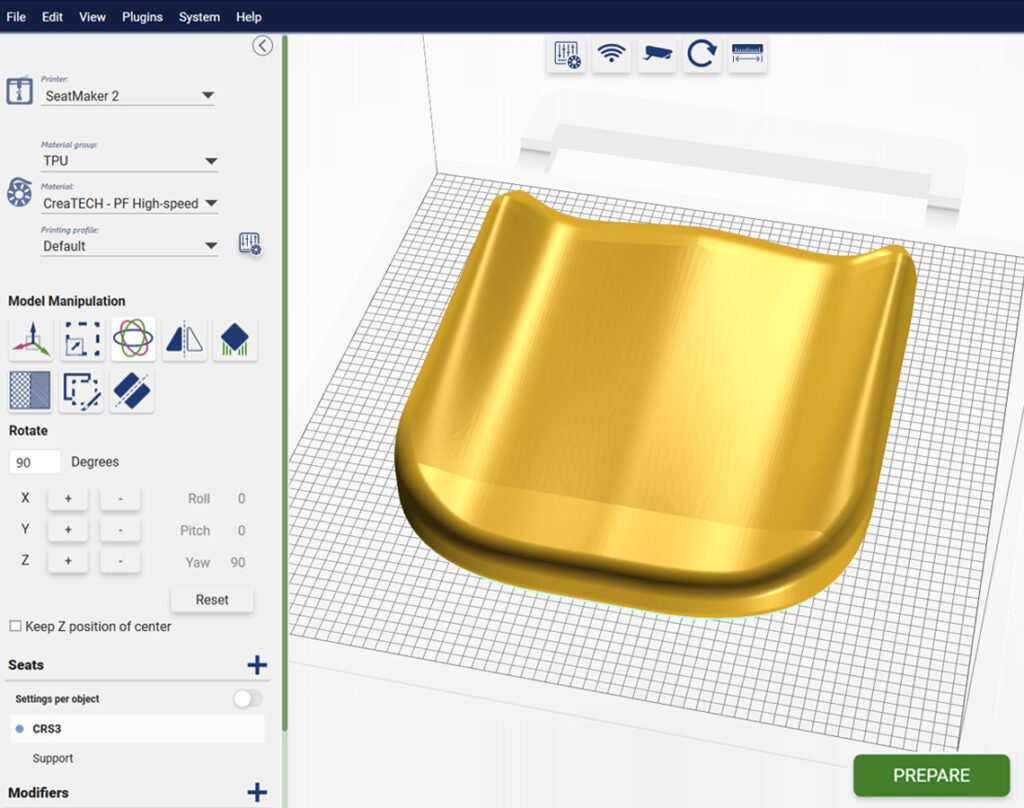
Selected printer
Choose profile for loaded material
Select printing profile
Advanced users: Modify printing profile
Move
Scale
Rotate
Flip
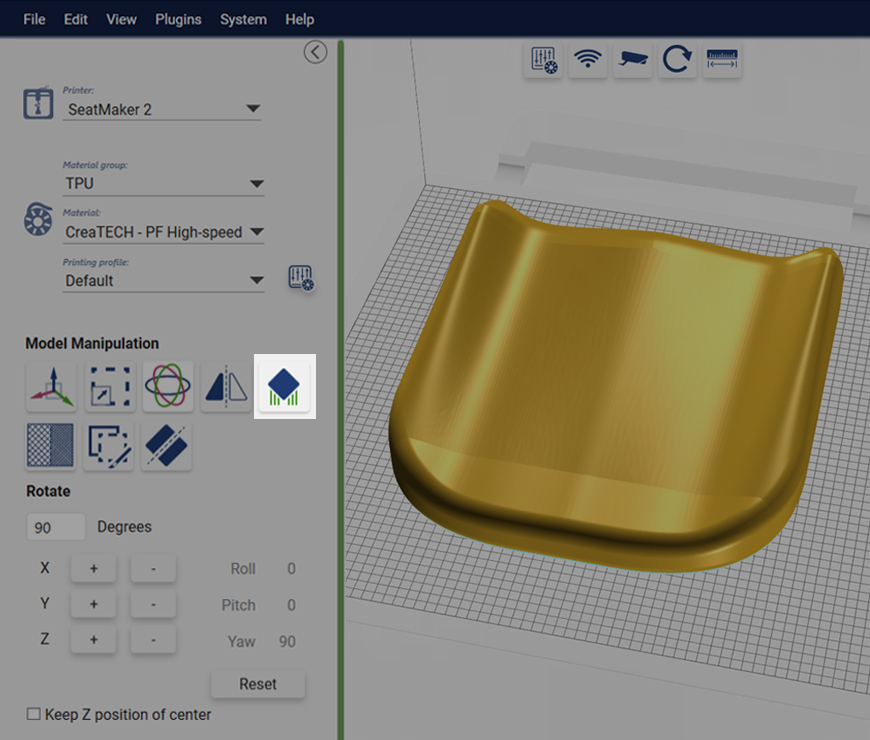
Adjust support structures
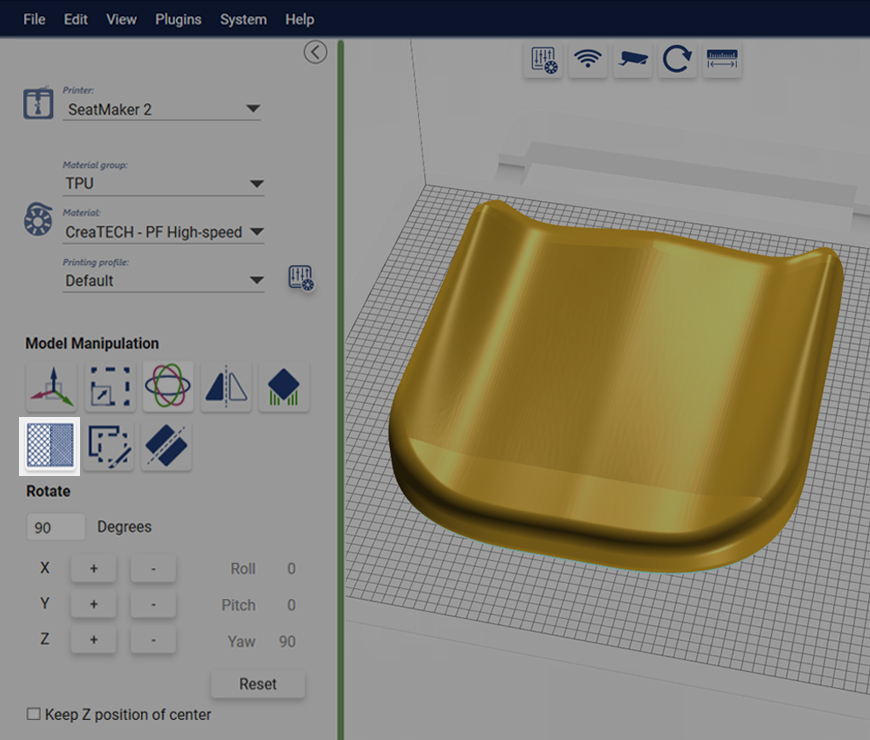
Apply hardness for the selected model
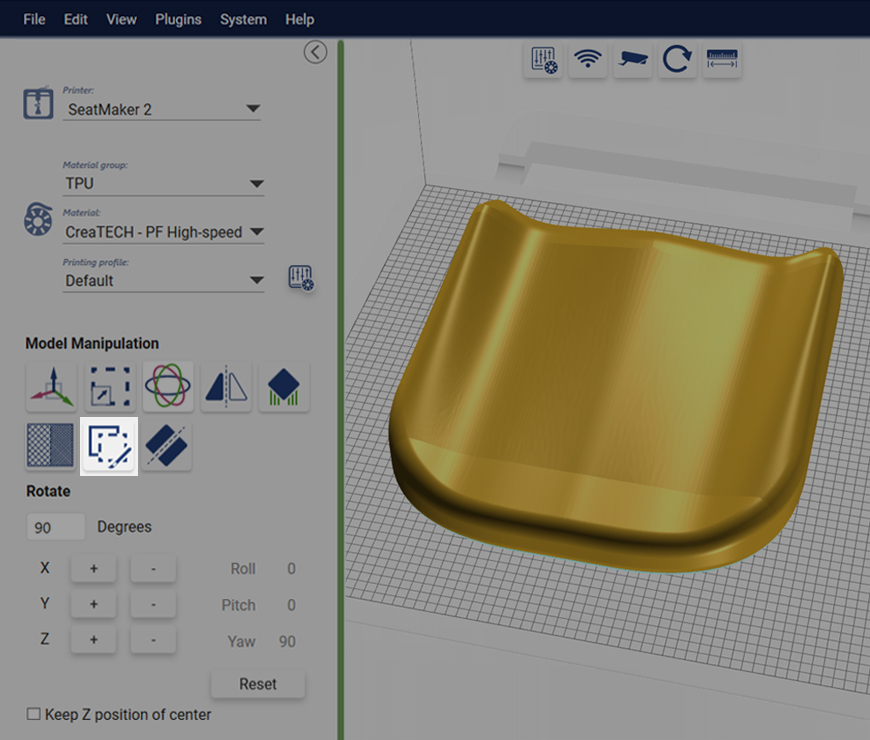
Add modifiers with paint on
Split large workspace into two smaller print jobs